For those using Firefox, you might be annoyed with the All Tabs Button on the top right side of the tab bar. This button is not only useless, it takes up space that becomes valuable in a tab bar full of open tabs. The method to remove this button is not so easy, but it is still possible by editing a particular file.
For Windows users:
1. Go to your profile folder (C:\Documents and Settings\******\Application Data\Mozilla\Firefox\Profiles\3lwzvjk3.default\chrome) and locate a file named userChrome-example.css
2. Open the file in wordpad or any text editor.
3. Add this line to the file: .tabs-alltabs-button { display: none !important; }
4. Save and close the file.
5. Rename the file to userChrome.css
6. Restart Firefox.
For Linux users:
1. Go to your profile folder (/home/******/.mozilla/firefox/9t25yjxp.default/chrome) and locate a file named userChrome-example.css
2. Open the file.
3. Add this line to the file: .tabs-alltabs-button { display: none !important; }
4. Save and close the file.
5. Rename the file to userChrome.css
6. Restart Firefox.
Hope this helps.
Showing posts with label firefox. Show all posts
Showing posts with label firefox. Show all posts
Saturday, October 17, 2009


Saturday, November 08, 2008
Add Google dictionary to your Firefox browser
Add the dictionary search to your firefox browser simply by typing a keyword and the search item.
To add the google dictionary to your firefox browser, search for the definition of a random word (Eg: Ameliorate) using google's "define: " function.

Now, simply copy the url (Eg:http://www.google.com/search?hl=en&rlz=1B3GGGL_en___
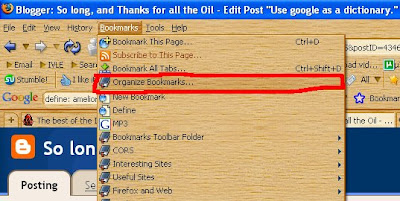
SG215&sa=X&oi=spell&resnum=0&ct=result&cd=1&q=define%3A+ameliorate&spell=1), go to bookmarks, click organize bookmarks, click new bookmark, and paste the url under "location".
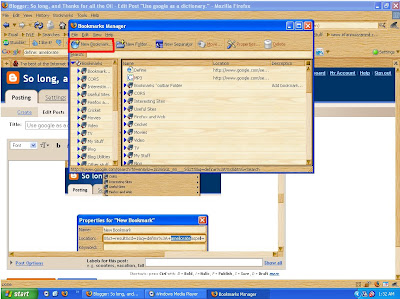
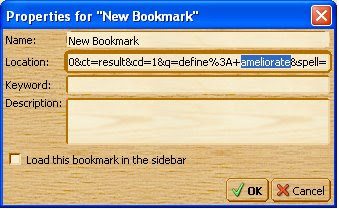
Then search the url you just pasted for the word that you typed previously (ameliorate) and replace it with %s. (Eg: http://www.google.com/search?hl=en&rlz=1B3GGGL_en
___SG215&sa=X&oi=spell&resnum=0&ct=result&cd=1&q=define%3A+%s&spell=1). For the keyword, add a letter or word such as "d" or "dictionary" or "define"; or whatever you are comfortable with.
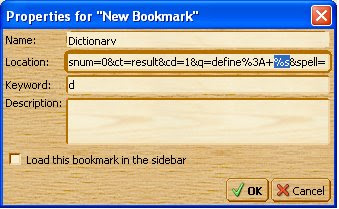
Click "ok" and go back to your firefox address bar to test the simple programming that you have just done.
If you typed "d" as your keyword, in your address bar, type "d ameliorate" and hit the Enter key to get the definitions of ameliorate.
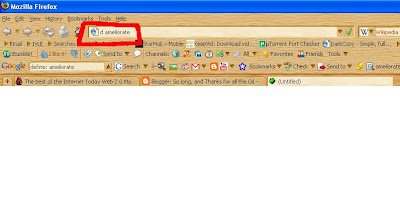 By this way, you can apply it for any search you want to save for later use. All you will need is the url where you simply replace the item you searched before with %s.
To add the google dictionary to your firefox browser, search for the definition of a random word (Eg: Ameliorate) using google's "define: " function.

Now, simply copy the url (Eg:http://www.google.com/search?hl=en&rlz=1B3GGGL_en___
SG215&sa=X&oi=spell&resnum=0&ct=result&cd=1&q=define%3A+ameliorate&spell=1), go to bookmarks, click organize bookmarks, click new bookmark, and paste the url under "location".


Then search the url you just pasted for the word that you typed previously (ameliorate) and replace it with %s. (Eg: http://www.google.com/search?hl=en&rlz=1B3GGGL_en
___SG215&sa=X&oi=spell&resnum=0&ct=result&cd=1&q=define%3A+%s&spell=1). For the keyword, add a letter or word such as "d" or "dictionary" or "define"; or whatever you are comfortable with.

Click "ok" and go back to your firefox address bar to test the simple programming that you have just done.
If you typed "d" as your keyword, in your address bar, type "d ameliorate" and hit the Enter key to get the definitions of ameliorate.
 By this way, you can apply it for any search you want to save for later use. All you will need is the url where you simply replace the item you searched before with %s.
Subscribe to:
Posts (Atom)